Transferring Sounds Via Midi On The Korg M1
Midi Tips June 10th, 2007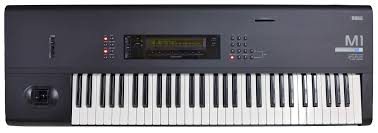
The Korg M1 is one of, if not the best selling synthesizers of all time so there are a lot of M1 owners out there still looking for new sounds. You can find more info on all our Korg M1 sounds and Patches over here. We have a great collection which will get your M1 back on it’s feet again, but there are a few important things you should know.
NOTE: These settings will also work with the Korg M1R Rack Module as well as the Korg T-Series (T1, T2, T3 and T3-EX).
The ROM, RAM and PCM cards that fit into the M1 card slots have not been made in many years and are hard to find. Even if you do happen to find one, there is a good chance that the internal battery on the card is dead. That makes the card useless in most cases. You can change the battery on “some” cards, but even if you do any sounds that were on the card are gone. The cards are also expensive and do not hold much memory (usually only one bank of sounds can fit on a typical RAM card).
As described in our “Sysex Made Simple article”, there are better ways to do things. A simple midi interface will connect to your computers USB port and enable you to load and save sounds to your computers hard drive. Each synthesizer is set up differently, so refer to your owners manuel on how to transmit a “Bulk Dump” or “Sysex Dump” from your computer to your synth. Here are the settings that will let you do this on the M1:
To load in new sounds:
Set your M1 as follows in the global section:
Midi channel to 1
Memory protects to OFF
Midi filtering excl: ENA; 100/100 mode
To save sounds to your computer:
Set your software to receive the bulk dump
Set your M1 as follows in the global section:
Midi channel to 1
Midi filtering excl: ENA; 100/100 mode
Go to “Midi Data Dump Page”
You can set to dump Programs, Combis, Global, Sequence Data or All. Set to “All” unless you just want to save part of your internal data.
press “DUMP”
If the file does not transfer then check your cables and software settings and repeat.
If you need a program to load the sounds in, we provide easy to use applications that will load in sounds to just about any synth with midi.
Here are a few other tips in working with sysex transfers;
Before you do anything, make sure your Midi cables are correctly connected. “Midi Out” of your Computer interface to “Midi In” of your synth & “Midi Out” of your synth to “Midi In” of your computer interface. Then copy the file to your hard drive or back up everything on a CD, floppy of whatever your using.
Make sure you “Save” your internal sounds to disk before loading in our sounds. Our sounds will replace your internal presets, so it’s best to save them to disk so you can reload them in later if you wish. Many synth have a “re-initilize memory” setting which you can use to restore the original factory settings. Note that there is no re-initilize setting on the M1, M1R or T- Series.
The sounds that we sell for the M1 are in .syx format (system exclusive) We recommend using Midiox or OSX Sysex to transfer the sounds. Although there are many other programs available that will transfer sysex files. We also provide the sounds in a standard midi file format (.mid). You can use your sequencer program (Logic, Cubase, Digital Performer etc) to load in the data. To load via your sequencer just import the file into a track. Then play the track and the data will load into your synth. The midi files will also work with windows media player. Just import them into windows media player and play.

83 Responses to “Transferring Sounds Via Midi On The Korg M1”
Leave a Reply
You must be logged in to post a comment.
December 10th, 2010 at 1:40 am
I’m having the same problem as ‘Ted Wilder’ above… after sending the sysex file through MIDIox, the first few patches are ok, but eventually the patch names go all gobbledigook and the sounds are messed up. Tried several times, and every time is a different amount of patches that are OK. For buffers tried 512/64.
December 10th, 2010 at 8:57 am
Hi Rick,
Try slowing down the transmission speed and raising the buffer amount.
Good Luck!
December 10th, 2010 at 3:46 pm
Not sure I can find where to change the transmission speed… do you mean ‘ms between buffers’?
I have tried the following with no success (once did get up to patch 55 working):
512/64 512/64 1000ms
256/32 256/32 3000ms
December 11th, 2010 at 7:45 am
Rick – I’m not sure of the exact settings off hand since I’m a Mac person and don’t use Midiox. Check out the YouTube link in post #42 by Electrophile. He got it to work by slowing down the transmission speed – although he slowed it down a bit too much. The data should load in under a minute – not a half hour. He shows all his settings in the video. That should get you going.
December 12th, 2010 at 1:07 am
Unfortunately, that video has been removed by the user. 🙁
Will keep trying.
December 14th, 2010 at 12:23 am
Well, much to my surprise I gave it another try this morning and it worked perfectly the first time, even with MIDIOX’s default settings! All 99 sounds transferred and they all sound great.
December 14th, 2010 at 9:42 am
Alright! Well if first you don’t succeed…..
December 14th, 2010 at 8:55 pm
hello i followed all the steps but when im transfering it finish and everything but thers no sound still on my korg m1 can somebody help me
February 7th, 2011 at 3:52 am
For restore M1 sound here is what I found.
1) cheap USB-MIDI (from China) not WORK for sure. I try couple of them and ALL not work. After I did some research, they all have hardware problem. (They use the same ship which detect when sending alot of data). So, it will seem to work when sending note one/off (play song). But for sysex no way. YAMAHA UX16 is work for me. It can send sysex. (At least for my M1).
USB-MIDI that not come it’s own driver (CD/DVD) might not work also. (If you plug USB-MIDI and XP don’t ask you to install anything. There is a know BUG in Microsoft’s generic MIDI driver. You can check MIDI-OX forum for that.
2) Even with YAMAHA UX16, MIDI-OX need parameter to set (delay). I use “Bome’s sendsx”. It works instantly.
3) After send sysex to M1, don’t forget to turn it OFF and wait for a while and turn ON. I spend around an hour to discover that, sound will not appear instantly after sending complete.
I hope this might save someone’s time, because I already did spend mine.
February 14th, 2011 at 7:42 pm
I was having the same problem, downloaded MIDIox program, read help on MiDIOx and found out I had cables from interface backwards, send voices again and got all voices in. I did have to increase the buffer to 600 and 75 before it would finish transfering voices.
February 26th, 2011 at 12:12 pm
i have just read through the whole of this thread to find the answer to my question…but you don’t seem to have answered it! i have one of the first M1’s and still working! i have lots of songs in the sequencer that i would now like to transfer to cubase SL on my Mac G4 computer. Can you please tell me if this is possible – i’m keeping my fingers crossed!! thanks.
March 2nd, 2011 at 3:56 pm
hi
i’ll try again! i think my message got lost.
i have an old korg M1 – still working – and wondered if i can transfer midi from my sequencer to a project page in cubase SL in order to re-mix etc??
many thanks for any info on this
March 18th, 2011 at 1:17 pm
hey all, Ive trawled through each and every one of these posts… trying to get my M1 factory sounds back.
I’ve got my M1 hooked up to my midi device, everything configured ok. All I can manage to get restored by MIDIOX is the preset I00 Universe. and Combi I00 Filmscore. All other sounds not there.
Ive tried fiddling about with buffer settings but still no joy. Has anyone got other buffer settings to try? Or solution for me? I noticed someone else on this thread could only get the Universe patch back too. Pleased to hear from anyone who can help?
Thanks
Al
May 31st, 2011 at 10:51 pm
me to m8 iav tryed everything bbut only get a few soungs on my m1 i to use usb to midi but still no luck please can any 1 help
February 1st, 2012 at 3:41 pm
I have a M1 that works but says the battery is low.
Can I change the battery and save the current settings without having to dump to a computer and then reload?
I was thinking of connecting several batteries to the board while the battery is out. Will that work? One guy in out shop thinks that just changing battery quickly will work, but I am afraid to try it.
January 5th, 2013 at 9:29 pm
I intialized my m1.now no programm at all.only 100 waveform is there. i have um-1g (cakewalk) midi interface.can i use it to transfar sound from midiox to m1.
January 21st, 2013 at 4:21 pm
hello
i’m desperate. i’ve one Korg T3 and i read all your posts, but npothoing changed. I checked Midiox, i cheched Sendex, i uploaded file here(http://www.korg.co.uk/support/downloads/tseries_dl.php) and i checked a lot of delay (40ms, 60, 160, 300, 400…1000)
Nothing changed. I changed the dumper battery and now i try to reload the old bank T3sound to sell it. i need money urgently. Could you please help me? i use one usb-midi cable to upload sysex files to T3, and led blinks. But then i shut down the keyboard and again i switch on….nothing chang ed: always Init Combi, only piano sound….
January 23rd, 2013 at 8:31 pm
I intialized my m1.now no programm at all.only 100 waveform is there. i have um-1g (cakewalk) midi interface.can i use it to transfar sound from midiox to m1.
February 5th, 2013 at 7:45 pm
I had real problems using MidiOX and trying to send Sysex to my T3.
I am now using Bome’s SendSX and it works first time every time,
using Windows 7 and a USB Midi interface.
Hope this helps someone.
March 12th, 2013 at 1:35 pm
Would like to know if anyone has ever changed the battery for the M1 without losing the sounds.
July 14th, 2013 at 8:22 pm
M1 factory-sounds (sysex 35KB file) to Korg M1.
Finally it happend succesfully for me today after several weeks of hairpulling and netsearches!
Korg M1 from 1991, New battery installed recently, MIDI-OX 7.0.2.372, Miditech MIDILINK-mini USB-MIDI interface.
Sysex configuration in MIDIOX:
Size 120
Num 32
Size 120
Num 32
Delay Between Buffers 60
v Delay after F7 60
v Show F0-F7……
—
I think the main thing here is that I went below 128 bytes. But I dunno, I’m not a technician.
Give it try and Good Luck!
DrNoHow
August 4th, 2013 at 1:48 am
OK, so after having done several of these M1 battery updates over the years (I’m getting a rep as the Korg saviour), I have to say after you do the battery replacement, Bome’s SendSX is the Shiznit. Forget MIDI-OX. The interface is terrible, it’s way too complicated and doesn’t work well out of the box. I have a Roland UM-ONE (among other MIDI interfaces,) and it works really well for this task. It’s about $20/$30 at a good music store, or they might even let you borrow one. Bome’s SendSX required no tweaking at all and did the job in less than 30 seconds vs endless tweaking with MIDI-OX and a lot of frustration. It’s a Windows program, which might be an issue for some people, but borrow a laptop and you’re good to go.
A couple of points: Once you get the system into ‘enabled mode’ to accept the programming, (here’s an excellent article http://tlittle72.tripod.com/) push the Prog button to get into ‘regular’ mode. After the send is complete and the info has gone through, just turn the unit off, power it back up and your sounds should be there. I’ll keep looking for a similarly simple program for Mac.
December 13th, 2013 at 2:30 pm
i had the same whole sysex-transfering problems, all the data sending works well but no data transmitted to the Korg M1.
In the end i replaced my old MIDI/USB Interface cable from a noname to another noname brand which fixed the transfering bug.
One thing which can help to identify transfering problems is to check the midi light on the Korg M1 which should light up short time after the sysex transfer is finished.
If the light has no activity during or short after receiving sysex data there is a good chance that the interface cable is not able to send sysex data properly.
my old cable was sending all kinds of midi signals but not the sysex-data because of that i had a hardtime to found the error.
the follofing MIDI-OX / sysex settings are working fine since then
MIDI-OX
click on View/Sysex, Sysex/Configure
Low Level Input Buffers
Size 265 Bytes
Num 32
Low Level Output BUffers
Size 51200 Bytes
Num 2
Output Timing
Delay Between Buffers 500 Milliseconds
Delay After F7 (checked) 500 Milliseconds
March 26th, 2014 at 1:11 am
This page was very helpful. Ultimately, I was doing everything right, but my USB-MIDI cable wasn’t passing the data. On a lark, I tried to transfer the data using my MBOX2 as the middleman instead, and VOILA – back in action. Whew! Just thought that might help those of you who are having trouble with plain ol’ cables and can try passing through their MIDI recording interface instead of rolling the dice with more cables. Good luck!
July 15th, 2014 at 11:06 pm
Hello All,
Looking on suggestions of midi transfer cables/ interfaces that work on Korg M1 sysex transfer please. Midiox or Similar Software.
Been suffering the same as those with sysex transfer to M1. Trying to restore factory settings. Now looking at cheap usb midi cable.. Hmmmmm.
Heeellpp!
Cheers!
July 16th, 2014 at 6:32 pm
To say i just bought a roland um-one mk2 midi usb cable. Works perfectly. NO TWEAKING whatsoever.
This site was a great help. Thankyou all.
August 8th, 2014 at 6:38 pm
I just took out my old T3 from storage and changed the battery which was of course dead. Now program A, B and combined show no sounds,,,anysuggestions ?
January 2nd, 2015 at 3:49 pm
Any additional MIDI-OX settings that worked. I’ve tried all of them on this site but still struggling to get the original M1 sounds restored.
January 2nd, 2015 at 3:54 pm
One more question. I have my midi channel set at 1 on my keyboard. Is there a corresponding midi channel setting on the MIDI-OX software?
February 22nd, 2015 at 4:00 pm
Hello all,
I was having problems restoring the factory sounds on my Korg T3 using MidiOX.
I found Bome SendSX and it worked 1st time.
http://www.bome.com/products/sendsx
You can download BomeSX from this link: http://www.bome.com/bome/downloads/SendSX_1.4.198.exe
So if you’re still having problems with MidiOX it might be worth a try.
July 14th, 2015 at 11:26 pm
Hello all,
After many hours of frustration I’ve finally managed to get my M1 back to its’ original factory settings.
I tried everything and here’s how it worked for me.
I used Borne’s Send SX(free to download)
The cheap usb lead I bought from ebay did not work. I read somewhere that cheap usb to midi leads wont work, and they were right!
I used the midi OUT port on my Presonas Audiobox and plugged that into the midi IN on the M1.
Hey presto!!! It all worked. Just like the videos I’ve watched and the instructions I’ve read. Simple
It’s so good to play those original presets again 🙂
Good luck to anyone still struggling, hope this helps
June 8th, 2016 at 3:32 am
thanks for the article.
Do you need OSX sysex, or can you use logic pro X as the program to save the sounds from the Korg to your comp?
Thank you
January 28th, 2017 at 10:55 pm
all I would like to do is transfer sounds from logic onto my korg m1 but can’t figure out how